How to customize your Clothing Store Template on Wix Studio
Content Update
Once you are in the dashboard view, click on the “Edit Site” dropdown and select Content Mode. This will open the Wix Studio editor in a new window, allowing you to customize all textual and visual content on every page. Make sure to go through each page to update your content and all button links to your business information (email, phone, socials, etc.).
Publish when you are done for the changes to appear live.

Update textual content with any formatting option.

Stores Catalogue & Collections
Fully customize your store through the dashboard, under the Catalogue dropdown. The inventory will automatically update on your live website on the Home Page, Product Detail, and all store related pages.
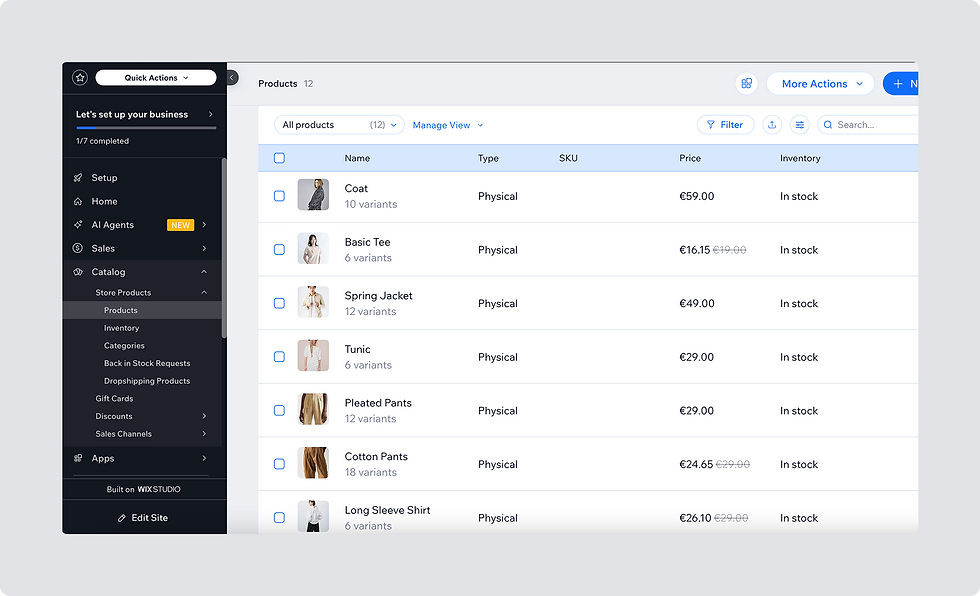
Set up product categories using collections for sorting, filtering, or displaying groups in special instances. For example: “Popular Items” shown on the Home Page.

Tip: To change what content appears on the Home Page instead of “Popular Items”, go into Full Edit Mode in Wix Studio and set another collection to display, and update main buttons link.

Shop By Category
Set up category images and links, leading to category pages within the catalogue.

Wix Forms
Access your forms from the dashboard to manage leads and contacts.

FAQs
Manage FAQs from the dashboard.

Global Styles
Colors & Fonts can be updated in one place. All instances on the website will be updated automatically.

Full Edit Mode on Wix Studio
Once you are in the dashboard view, click on the “Edit Site” dropdown and select Full Mode. This will open the Wix Studio editor in a new window, where you can customize the layout and styles of the content. In this mode, you can add new pages, sections, or delete information that is not relevant to your business.
Publish when you're done for the changes to appear live.
Note: This is an advanced editing level of the Wix Studio platform. It is recommended to duplicate your site before editing or use the “Site History” option to revert to the original. Feel free to adjust text sizes, text box widths, image proportions, etc., to fit your business needs


Comments